Getting started
This page walks a new firm through its first day on Nishaan.
1. Create your firm's account
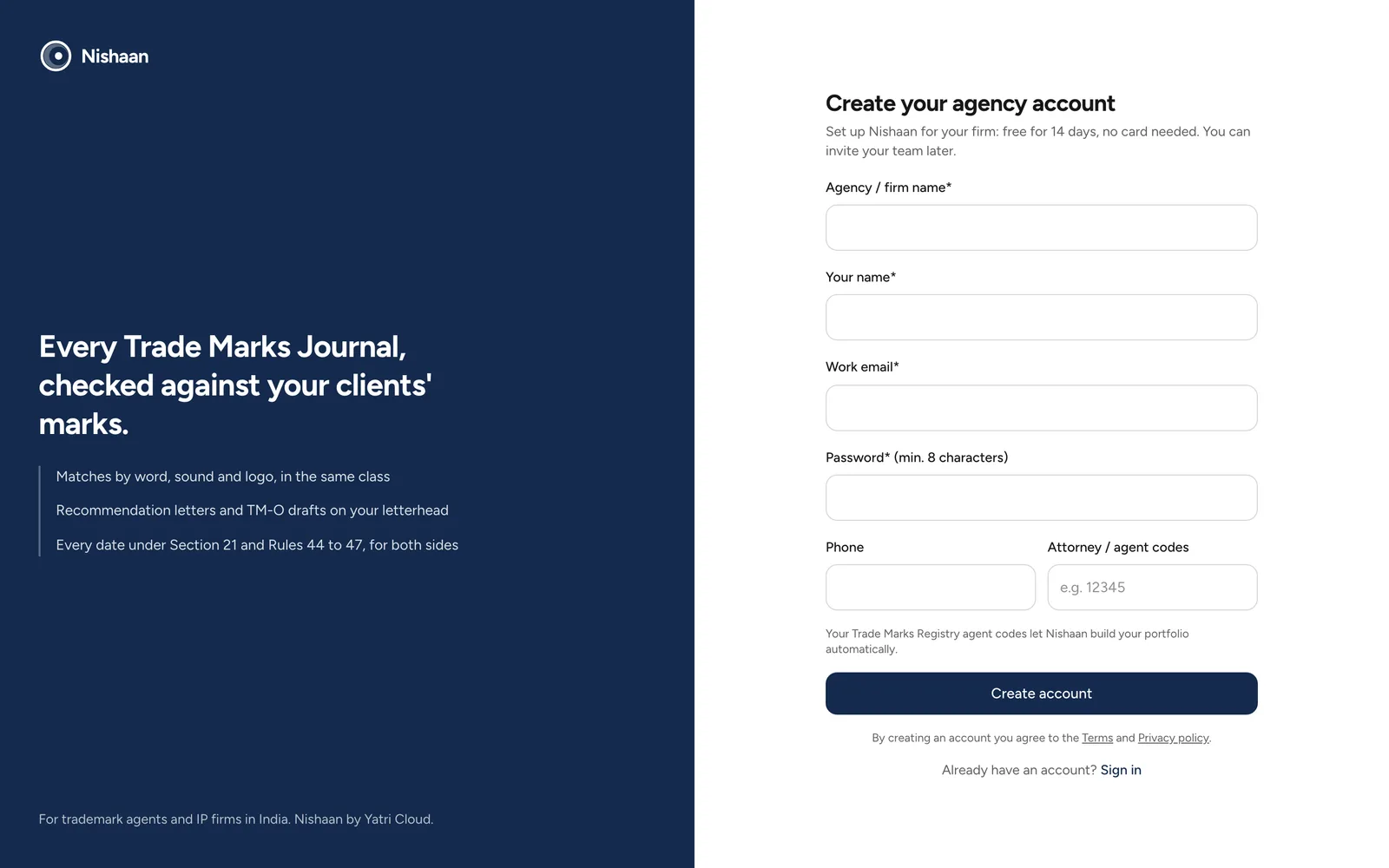
The sign-up page.
Open the Nishaan website and choose Create your agency. Enter your firm's name, your name, your email address, a phone number and a password of at least eight characters. You can also add your Trade Marks Registry agent codes now, or later in Settings.
You become the owner of the workspace. Owners can change the firm's details and add colleagues.
2. Add your letterhead and agent codes
Go to Settings and open Agency profile. Fill in the address, email, phone, website and a short line such as "Advocates and Trade Mark Attorneys". These details are printed on every letter and Form TM-O draft.
Add your agent codes (for example 12345) and your attorney names exactly as the e-Register shows them. Nishaan uses them to find the applications your firm filed.
3. Load your clients' marks
Open Portfolio. You can:
- choose Sync from attorney codes to bring in every application filed under your codes,
- choose Import Excel to load an existing client list,
- or fill in Add Manually for a mark that is not yet published.
See Portfolio for the details of each option.
4. Check the latest journal
Open Journal watch. Tick the latest journal and choose Generate Search Report. The report lists the marks in that journal that are in the same class as one of your marks and look or sound similar.
5. Act on a conflict
In the search report, tick your mark next to a conflicting mark, choose the report type and generate it. A recommendation letter goes to your client; a Form TM-O draft goes to your attorney for review. Tick Track as outbound opposition if you plan to oppose, so Nishaan follows the deadlines for you.
6. Invite your team
In Settings, open Team and add your colleagues. Members can use every part of Nishaan. Only owners can change the firm's profile, team and templates.
From then on, the dashboard shows what needs attention each day.
On your phone
Nishaan works in the browser on a phone. Menu at the top opens the list of pages, and Settings sits next to Sign out at the bottom of it. Tables show each row as a card, with the column name next to each value, so nothing is cut off.
When a page needs something first
Some pages work from what you have set up. Until it is there, a banner at the top of the page says what to do and takes you to it: Journal watch and Reports need marks in your portfolio, Reports need your letterhead details for letters and Form TM-O drafts, and the opposition pages find your cases from your marks or agent codes. The banner goes away once the step is done.